Billing Workflow
This guide covers the main Petaladdin tasks handled by billing staff, cash counter users, and operations staff during a normal shift.
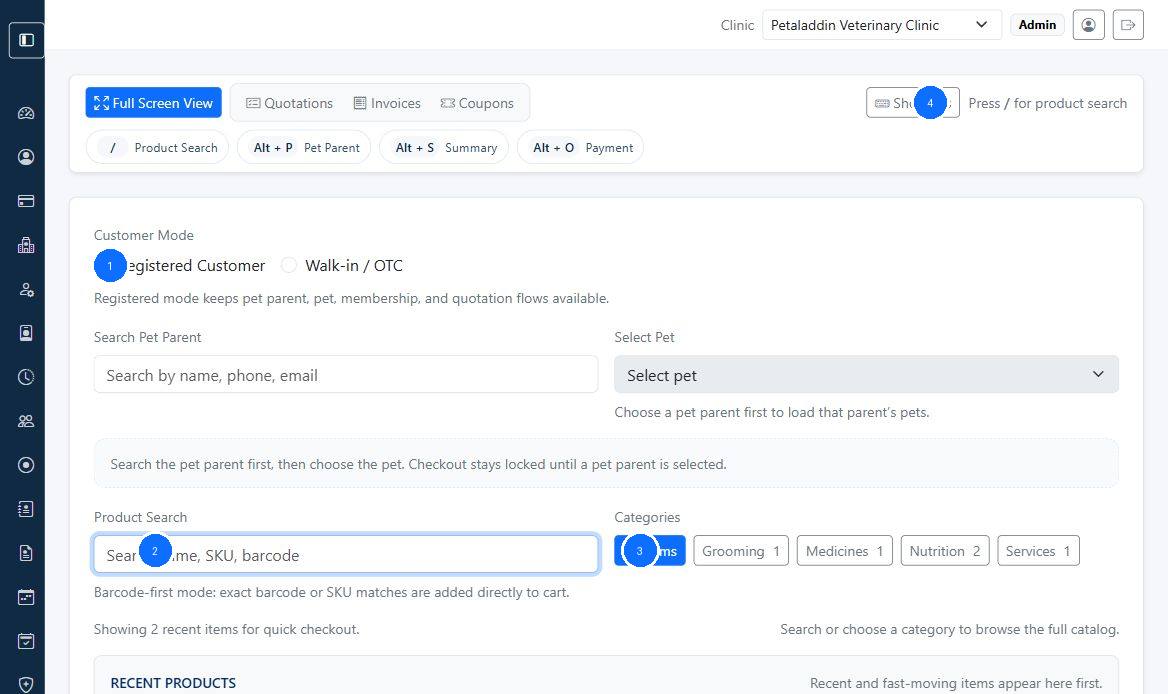
Quick guide:
1confirms the bill type and active customer context.2adds items to the bill through product search and row entry.3reviews pricing, quantity, and line totals before checkout.4applies payment collection details and checkout actions.5completes the POS bill once the payment is confirmed.
Daily route
- Review the invoice queue, POS bills, and pending collections.
- Complete patient billing after check-out or create over-the-counter sales in POS.
- Collect payment and confirm invoice status.
- Handle reprints, corrections, or refunds when needed.
- Close the shift with a billing and receivables review.
During the shift
1. Complete regular patient billing
Use Billing, Create Invoice Screen, and Edit Invoice Screen for patient-linked invoices.
2. Use POS for counter sales
Use POS Checkout Workflow for quick sales that do not require the full visit workflow.
3. Confirm payment status
Use Invoices and Payments to review whether invoices are paid, partially paid, or still outstanding.
4. Handle exceptions
Use Invoice Print Screen, Refund Workflow, and Invoice Refund Record when a bill must be reissued, refunded, or reviewed.
5. Review promotions and plans
Use Coupons and Memberships when discounts or membership benefits affect the bill.
End-of-day checks
- review unpaid invoices and partial collections
- confirm refunded invoices are documented correctly
- compare billing totals with daily reports
- flag mismatches between consultation items and billed items
When to escalate
Tell an administrator or supervisor when:
- invoice totals do not match products or services on the record
- discounts, coupons, or memberships calculate incorrectly
- refunded invoices still appear as collectible
- repeated tax or pricing mismatches appear across bills