Dashboard Overview
The dashboard helps clinic teams understand what needs attention right now. It brings together appointments, consultations, preventive care, billing, inventory, and admin metrics in one place.
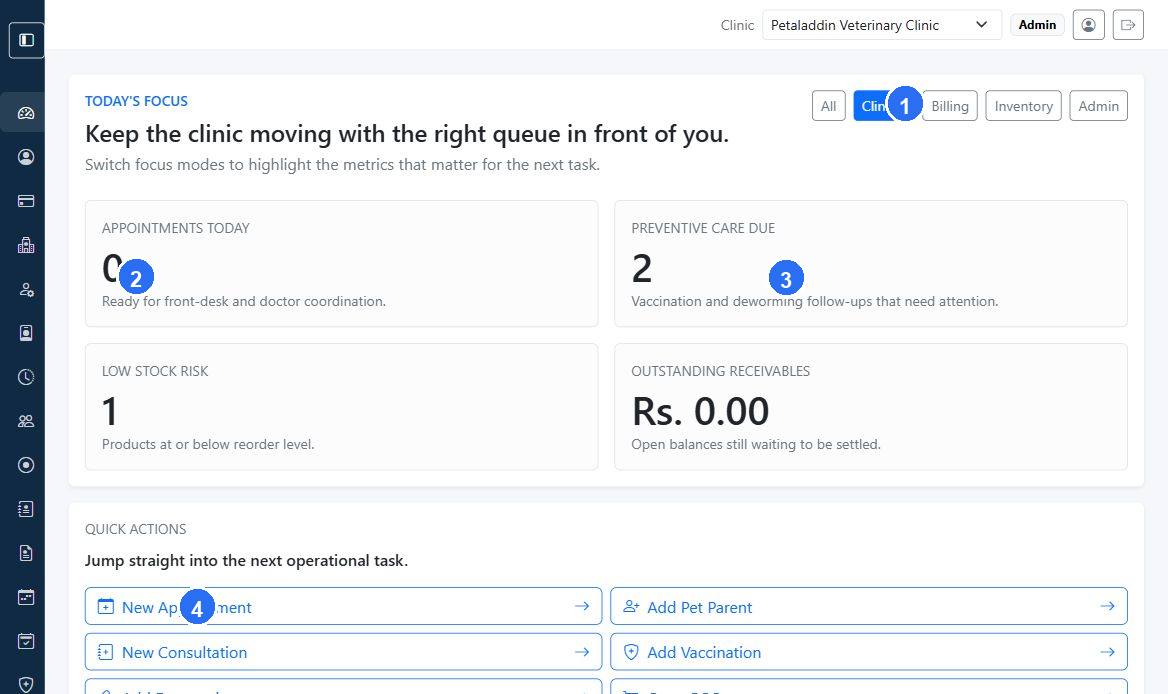
Quick guide:
1switches the dashboard focus between all modules and specific operational areas.2highlights the appointments summary card for front-desk workload.3shows preventive care due counts so teams can plan vaccinations and deworming follow-ups.4opens a quick action so staff can jump directly into common tasks.
Who uses this page
- clinic administrators
- front-desk staff
- doctors and supervisors
- billing and inventory staff
What the dashboard shows
Today's Focus
The top section highlights the current operational queue. It includes focus buttons such as:
AllClinicalBillingInventoryAdmin
Use these to reduce noise and show the metrics most relevant to the next task.
Quick Actions
Quick Actions provide shortcuts to the most common tasks available for the current user role. Depending on access, these may include:
New AppointmentAdd Pet ParentNew ConsultationAdd VaccinationAdd DewormingOpen POSCreate QuotationAdd PurchaseView InventorySubscription
Clinic Snapshot
The lower dashboard section groups operational metrics by workflow. It can show:
- today's appointments
- consultations
- vaccines due
- deworming due
- pet parents
- pets
- invoices
- receivables
- coupons
- memberships
- products
- low stock
- suppliers
- purchases
- clinics
- users
- doctor profiles
How to use the dashboard effectively
- Start with
Today's Focusto match the work currently happening in the clinic. - Review the top summary cards for urgent load, such as appointments or low stock.
- Use
Quick Actionsto move directly into the next task. - Switch to the relevant focus area before reviewing detailed metrics.
Helpful controls
CompactandComfortabledensity modes let users adjust how much information appears on screen.Show all metricsexpands the dashboard when theAllview is active.
Best practice
Use the dashboard as an operational starting point, then move into the specific module you need. The dashboard is best for awareness and quick action, not for completing detailed records.