POS Checkout Workflow
The Point of Sale screen is used for fast checkout. It supports registered customers, walk-in or OTC sales, product search, promotions, split payments, and immediate invoice creation.
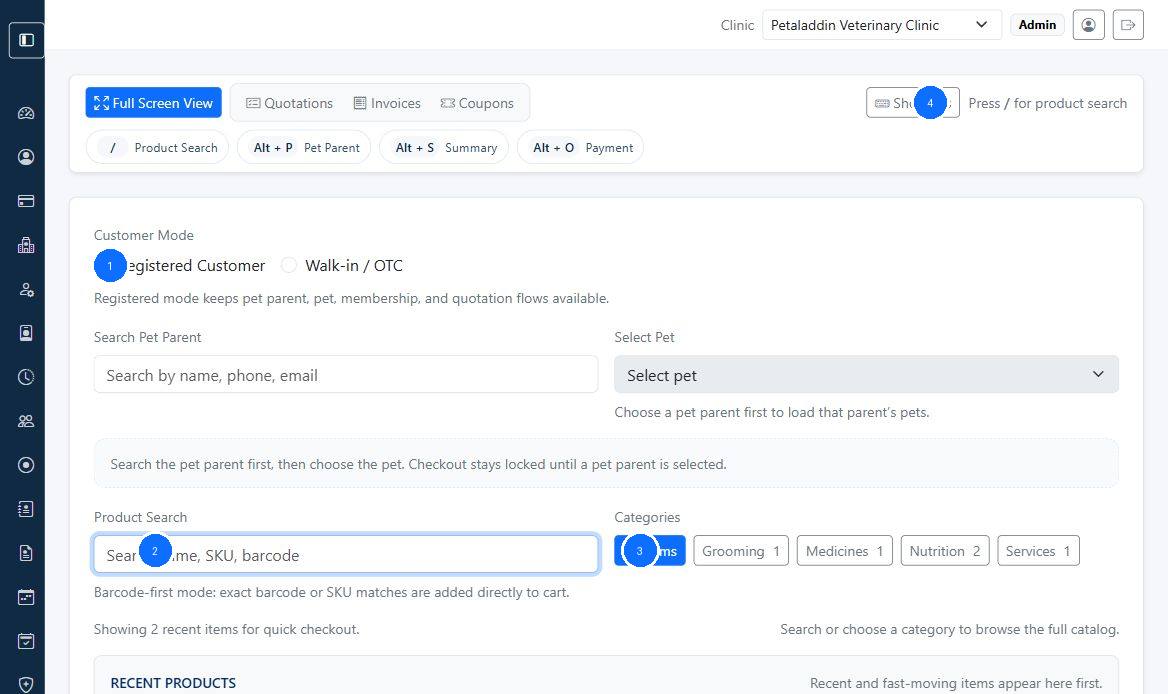
Quick guide:
1selects the customer mode2is the main product search entry point3filters products by category4opens POS shortcuts and keyboard help
What the POS supports
- registered customer billing
- walk-in or OTC sales
- quotation-based checkout
- product search by name, SKU, or barcode
- category-based product browsing
- custom line items
- coupon preview
- membership purchase
- split payments
- receipt and invoice generation
Main POS workflow
- Open
POS. - Choose
Registered CustomerorWalk-in / OTC. - Select the pet parent and pet when using registered mode.
- Search and add products or services.
- Review the cart, discounts, taxes, and total.
- Add coupon or membership information if needed.
- Record one or more payment rows.
- Select
Checkout Sale.
The system then creates the invoice and updates inventory immediately.
Choosing customer mode
Registered Customer
Use this when the sale should stay linked to:
- a pet parent
- a pet
- membership benefits
- quotation history
Walk-in / OTC
Use this for quick over-the-counter billing when no pet parent or pet link is required.
In this mode:
- pet parent selection is hidden
- pet selection is hidden
- membership purchase is disabled
- quotation linking is disabled
Searching and adding items
Products can be added by:
- typing product name
- scanning or entering barcode
- searching SKU
- filtering by category
If needed, staff can also add a custom item with description, quantity, price, and optional tax.
Cart and promotion review
The POS summary shows:
- cart lines
- quantity
- subtotal
- line discount
- membership discount
- coupon discount
- tax
- total
- round off
- rounded total
Use the promotion section to:
- enter a coupon code
- add a membership purchase
- add checkout notes
Payment split
The payment section supports:
- one or more payment rows
- multiple payment modes such as cash, UPI, card, bank transfer, and other
- even split across payment rows
- applying remaining balance to one payment row
After checkout
When checkout succeeds, POS shows a receipt banner with:
- invoice number
- link to view the invoice
- link to print the receipt
Common mistakes to avoid
- using walk-in mode when the sale should be linked to a registered pet parent
- forgetting to review quantity on stock-controlled items
- checking out before reviewing payment totals
- applying a coupon without confirming the preview result